.gif)
.gif)

AI can build a presentation in seconds—that’s nothing new.
The first time you use an AI presentation maker, it feels impressive. You type a prompt, hit enter, and almost immediately you have a nearly finished deck. But then you start reading it. More often than not, it’s generic and lacks the originality of your initial ideas. This watered down version of your story often dilutes the message, and requires countless iterations to get you to a finished deck that you feel good about. In some cases, it ends up being more work than starting from scratch.
Contrary to popular belief, that’s not a limitation of the technology—it’s a prompting problem.
Most people treat AI like a shortcut when in reality it should be treated like a collaborator. The difference between those two approaches is everything.
The shift: From typing prompts to directing outcomes
Here’s the mental model that changes everything: AI doesn’t actually create presentations, it executes instructions. If your instructions are vague, the output will be vague. If your instructions are sharp, structured, and intentional, the output improves dramatically and gets you closer to what you wanted.
This is why AI presentation prompts matter. They are not just inputs, they are the blueprint for your entire deck. In this blog, we’ll break down the difference between strong prompts, prompts that leave too much room for interpretation, and give you actionable tips that you can use in your next AI presentation design process.
The foundation: What great AI prompts actually do
Strong AI prompts do three things:
- Remove ambiguity
- Define success upfront
- Guide structure and tone
The easiest way to do this consistently is to follow a simple framework.
The GACTF framework
- Goal – what are you creating?
- Audience – who is it for?
- Content – what should be included?
- Tone – how should it sound?
- Format – slides, structure, length
Here’s an example: “Create a 10-slide investor pitch deck for a fintech startup targeting early-stage VCs. Include problem, solution, market size, and business model. Use a confident, concise tone.”
This works because it eliminates guesswork, and bridges the gap between your intent and the final output. The AI isn’t deciding what to do, it’s simply executing a clear plan based on your direction.
Where most people go wrong (and how to fix it)
Because most people are using AI as a shortcut, they get lazy with their prompts. They want to do the least amount of heavy lifting possible, and that includes the work upfront. But this approach often leads to what’s commonly referred to as “AI slop”— or generic, mass-produced content that lacks human effort.
Let’s look at the most common mistake people make.
Weak prompt
“Make a marketing presentation.”
This is vague, broad, and directionless. The AI fills in the gaps with generic assumptions and content.
Strong prompt
“Create a 12-slide presentation on B2B SaaS marketing strategies for CMOs. Include acquisition channels, key metrics, and case studies. Keep it professional and data-driven.”
Same tool. Completely different outcome. The difference isn’t effort, it’s clarity. Adding the extra context will help get the first draft closer to what you’re looking for.
How to actually work with AI in Beautiful.ai
People have a set it and forget it mentality when it comes to AI. The biggest misconception about AI presentation makers is that prompting happens once at the beginning. In reality, the best results come from collaborating with AI across different stages throughout the entire workflow.
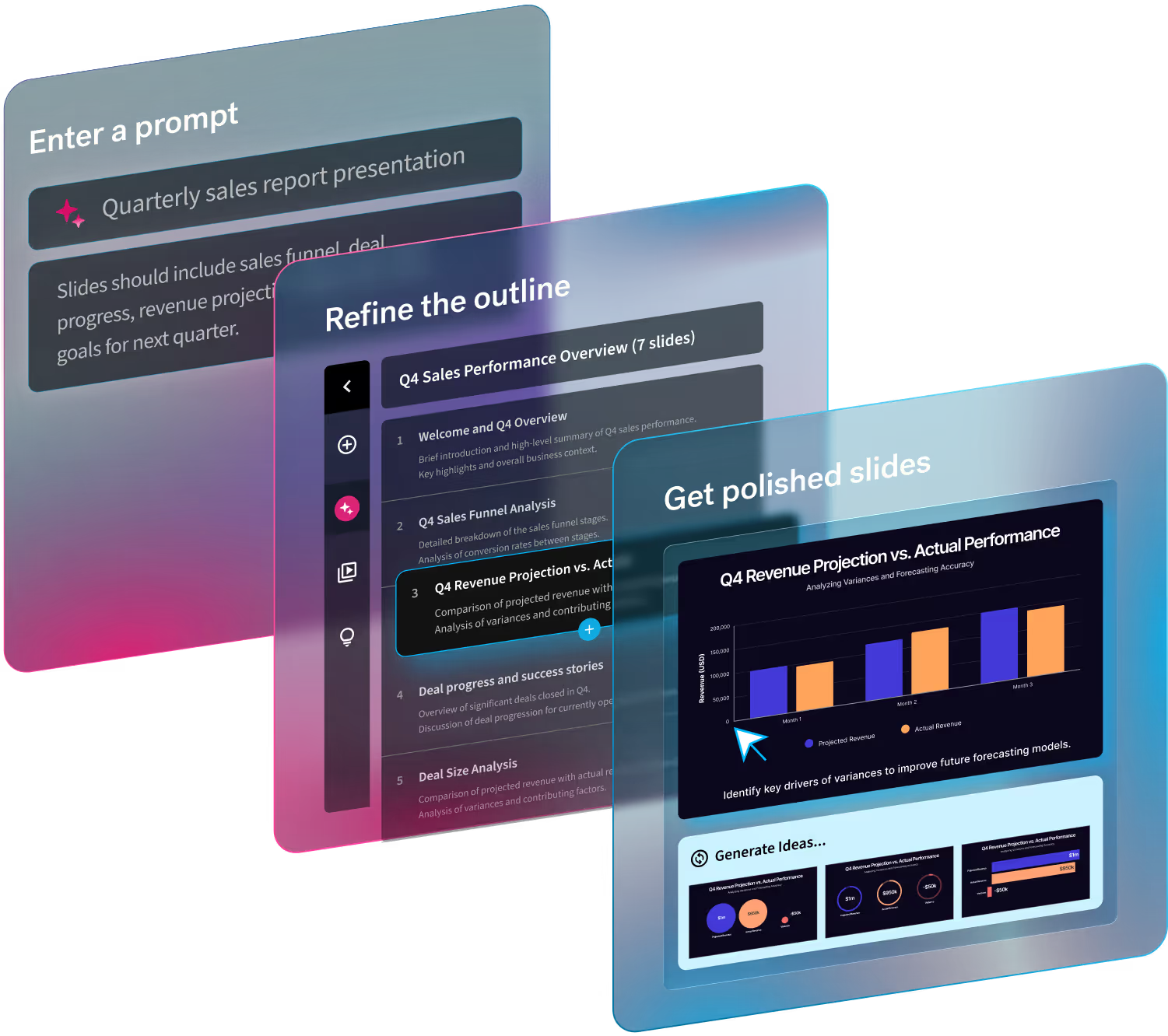
The three stages of Beautiful.ai’s Create with AI Workflow
1. Initial prompt and context. You define the direction.
2. Refine the outline with AI. You shape the story.
3. Slide ideas and iteration. You polish and elevate individual slides.
Think of this less like generating a deck and more like building a deck with AI at every step.
Stage 1: How to write a strong initial prompt
This is where most of the quality is determined.
Pick the right starting format
- A short prompt or topic for a fast start
- A long prompt or instructions for more control over text
- A pasted, slide-by-slide outline is best if you already know the structure
Be explicit about outcome and audience
Always define:
- who it’s for
- what success looks like
- tone of voice
- must-have content
Ground it with real content
Attach notes, briefs, or data whenever possible. This dramatically improves relevance and reduces guesswork.
Reuse what already works
If you have a strong prompt from another AI tool, use it. Beautiful.ai is designed to handle detailed instructions.
Use web search intentionally
Toggle it on for up-to-date facts, market context, or current events; leave it off when you’re working from known internal material.
Stage 2: Refining the outline with AI
This is where your presentation actually becomes good. And ironically, most people skip this step. Remember, the more you adjust in the outline stage, the less rework you’ll have to do later.
Treat the chat like a creative partner
Leverage the chat like a creative partner to help you iterate, ideate, make copy changes, add new slides, revise existing slides, and more. If you’re not sure what it can do, simply ask and test it out for yourself!
You’re not just editing, you’re directing.
Tell it what you’re optimizing for
- “Make this tighter for execs.”
- “Turn this into a customer-facing story.”
- “Keep it to 8 slides.”
- “Make the narrative more persuasive.”
Make targeted changes
- “Rewrite slide 2 to be more concise.”
- “Update slides 3–7 to match a confident tone.”
Use structure commands
- “Add a slide after slide 3 called ‘Risks & mitigations.’”
- “Split slide 5 into two slides.”
- “Reorder slides to follow a sequence of the problem, insights, recommendation, and next steps.”
Control what changes
- “Keep titles, rewrite bullets.”
- “Only update slide 6.”
Run a quality pass
- “Check for missing pieces.”
- “Flag dense slides.”
- “Ensure each slide has one main idea.”
This step is where generic decks turn into strong ones.
Stage 3: Generating and improving slides
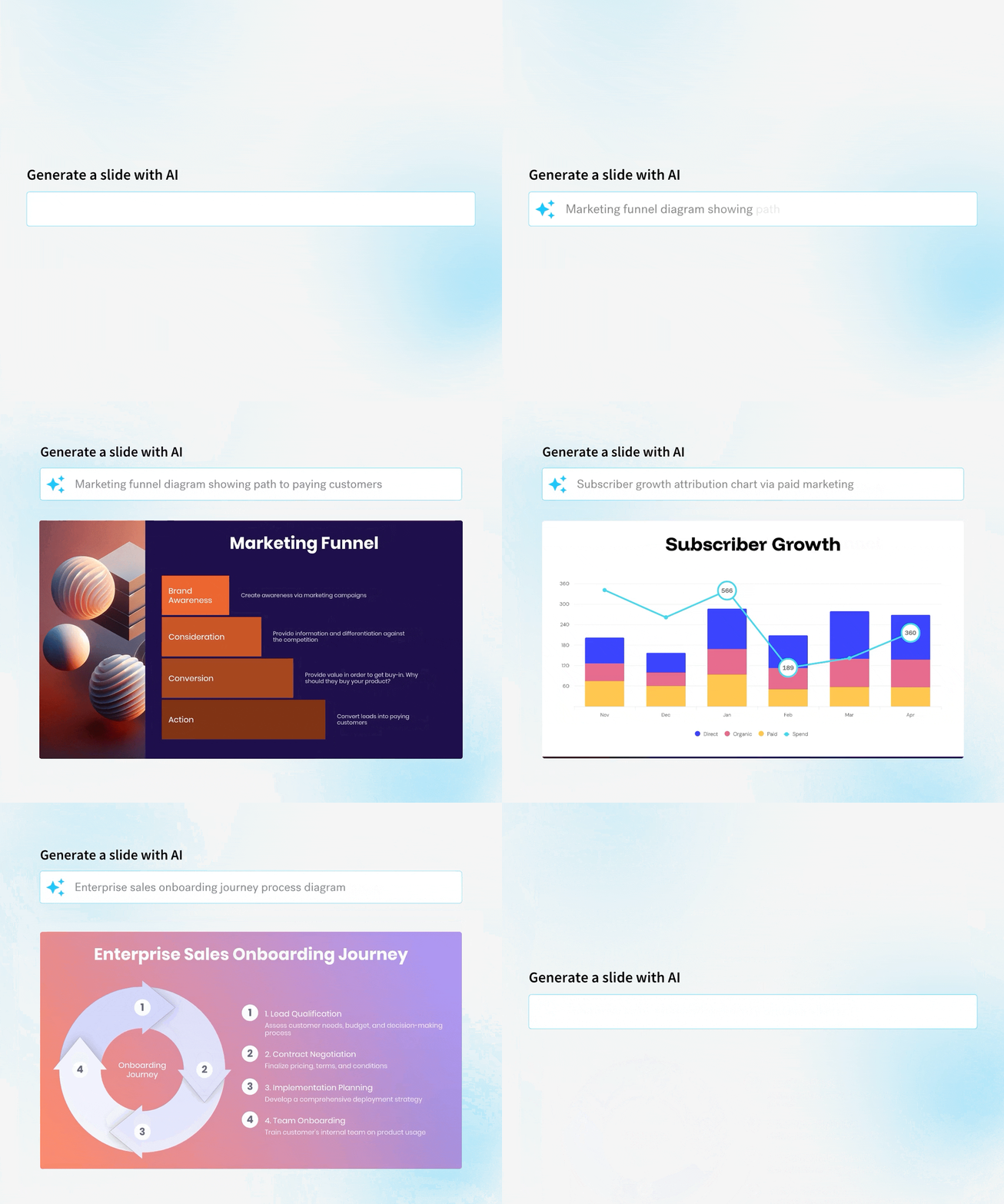
Once your outline is solid, you can start focusing on slides at the individual level. This is where things really start to come together with the Create with AI Workflow. You can edit, or add, at the slide level with AI by refining your original prompt, or prompting for something new altogether.
Create visuals from ideas
“Create a Venn diagram explaining the balance of power.”
Build data-driven slides
“Create a KPI slide showing monthly performance using this report [insert report] with 3 key insights.”
Use real inputs
Upload tables, docs, or notes to generate more accurate slides.
Iterate at the slide level
You don’t need to regenerate the whole deck—just improve what matters and fine tune as you work your way through the story.
Prompt templates you can actually use
Once you’ve found a formula that works, you can recycle the format for quick prompting in the future. This works especially well for organizations and teams that have brand guidelines in place to ensure any AI presentations stay consistent.
Below are some examples of strong prompts you can tailor to meet your needs— but we also recommend adding your own unique context through data, documents, long-form text or reports.
Pitch deck
“Create a [X]-slide pitch deck for a [industry] startup targeting [audience]. Include problem, solution, market, product, business model, traction, and financials.”
Sales presentation
“Create a [X]-slide sales presentation for [product] targeting [audience]. Include pain points, solution, benefits, proof, and pricing.”
Sales demo prompts
“Create a 6-slide sales demo walkthrough for [product] targeting [persona]. Include problem, product overview, key features, demo flow, and next steps.”
“Turn this feature list into a demo narrative focused on customer outcomes.”
Marketing strategy
“Create a marketing strategy deck including audience, positioning, channels, campaigns, and metrics.”
Internal report
“Create an internal report with insights, metrics, challenges, and recommendations.”
How different prompt styles change your output
Prompts are not one-size-fits-all, and every team member will have a different way of prompting AI presentation makers. But it is important to note that your prompt style directly impacts your AI output.
Short prompts
Fast, flexible starting point.
“Create a 10 slide QBR for ACME. Include wins, KPIs, risks, next steps.”
Short prompts with context
Better accuracy with real inputs.
“Use the attached QBR notes. Create an outline, then add a KPI summary slide and a risks slide.”
Long prompts
More control without over-specifying.
“Create a 12 slide board update. Sections: exec summary, goals, progress, metrics, budget, risks, asks. Keep each slide to 4 bullets max. No fluff.”
Slide-by-slide prompts
Maximum control. Define each slide individually when precision matters most.
“Slide 1 Title: ACME QBR Q1 2026. Slide 2 Agenda: Wins, KPIs, pipeline, risks, next steps. Slide 3 Exec summary: 3 bullets… Slide 4 KPIs: Revenue, retention, NPS… Slide 5 Wins… Slide 6 Pipeline… Slide 7 Risks… Slide 8 Next steps… Slide 9 Asks… Slide 10 Appendix: Metrics table.”
Advanced AI prompting tips
Keep these tips in mind when prompting in Beautiful.ai’s AI presentation maker.
- use numbers (slide count, bullets)
- define audience clearly
- add constraints
- iterate often
- refine with follow-ups
Common mistakes to avoid
- being too vague
- overloading prompts
- ignoring audience
- expecting perfection in one try
Why Beautiful.ai makes this easier
Beautiful.ai takes a different approach that puts you in control of the AI from beginning to end. With a context-aware creation experience, our AI workflow stays true to what you asked for and supports the way professionals actually build presentations. Instead of one-shot generation, you can shape the work as it forms, refine the story, and reach a work-ready result faster.
Start from whatever you already have. Use a short prompt, a detailed brief, a slide-by-slide outline, or a source document. Beautiful.ai turns that input into a clear outline, so you can validate structure and narrative before hi-fidelity designs. At the design step, visual iteration is instant with multiple layout options shown for every slide.
Key capabilities include:
- An outline refinement stage, so you can refine the story before design
- Context-aware creation that carries your intent from draft to finished slides
- Multiple layout options per slide to choose the best fit fast
- Prompt transparency and controls to steer results
- Brand Kits and visual styling upfront so slides on-brand from the start
Try the Create with AI workflow for free here.



.avif)
.avif)