

Google Slides vs Microsoft PowerPoint: which is better?

Google Slides vs Microsoft PowerPoint: which is better?
Choosing between Google Slides and Microsoft PowerPoint often comes down to how you work, who you collaborate with, and what your presentations need to accomplish. Both are widely used presentation software platforms, but they approach design, collaboration, and workflow from different directions.
Google Slides is a cloud-based presentation tool built for real-time collaboration and smooth integration with Google Workspace. Microsoft PowerPoint, part of the Microsoft Office suite, is the industry standard for advanced features, offline access, and professional presentations with detailed animations and design control. If you need smooth teamwork and quick access from any device with an internet connection, Google Slides delivers. If you need advanced design tools, offline reliability, and deep customization, PowerPoint remains the stronger choice.
This guide breaks down the key differences in the PowerPoint vs Google Slides debate across usability, templates, AI features, collaboration, pricing, and more to help you choose the right presentation tool for your specific needs.
Tool overviews
What is Google Slides?
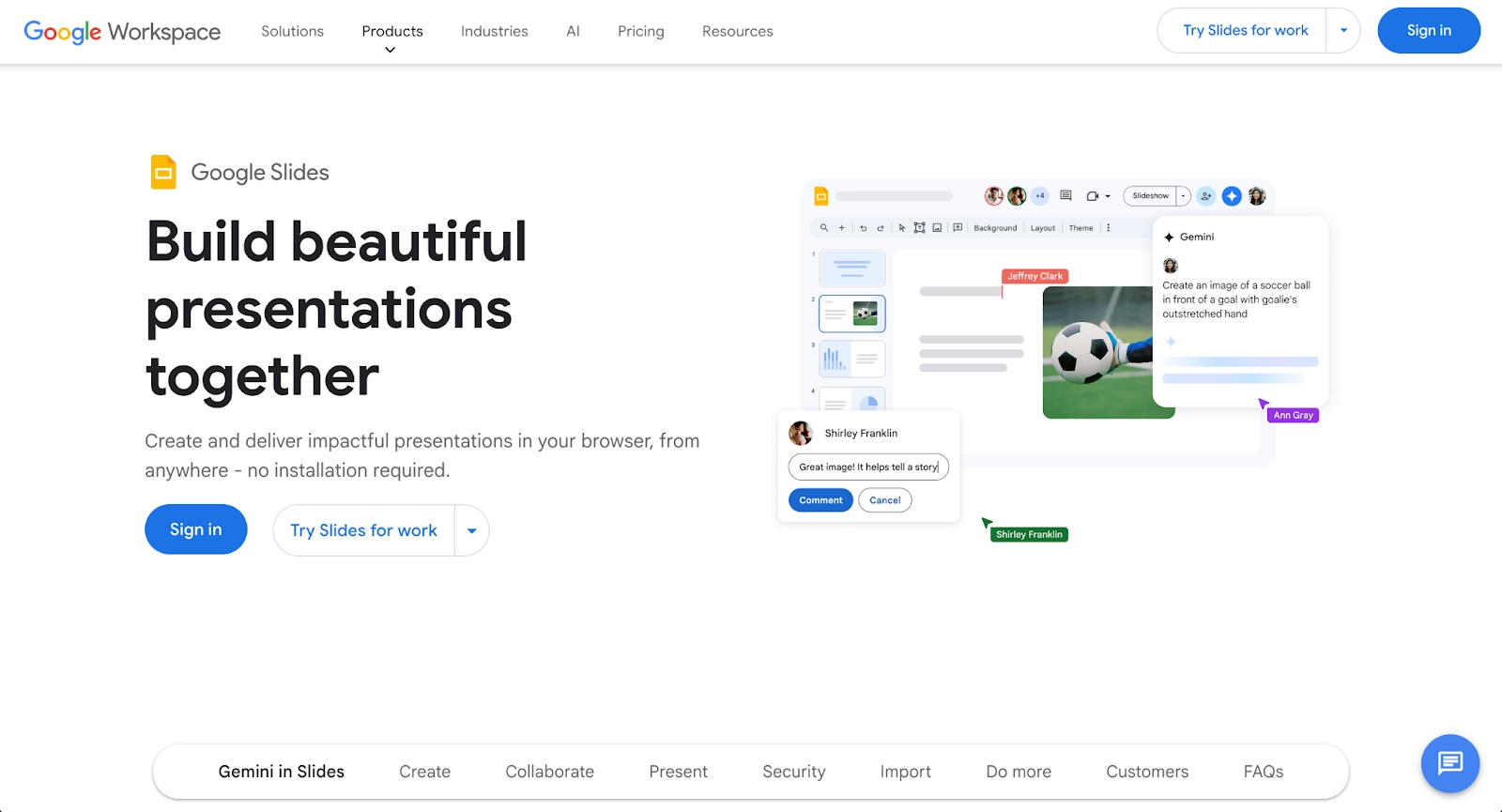
Google Slides is a cloud-based presentation tool that runs entirely in your web browser as part of Google Workspace. It allows users to create, edit, and share slideshows without software installation, making it accessible from any device with an internet connection. All you need is a Google account to get started.
Google Slides offers real-time collaboration where multiple users can edit the same Google Slides presentation simultaneously, with changes appearing instantly. The platform integrates smoothly with Google Drive for automatic saving and version history, including access to previous versions, Google Docs for content sharing, and YouTube videos for easy multimedia embedding. While Google Slides offers fewer advanced features than PowerPoint, its simplicity and cloud storage make it popular for teamwork, education, and quick slide decks.
What is Microsoft PowerPoint?
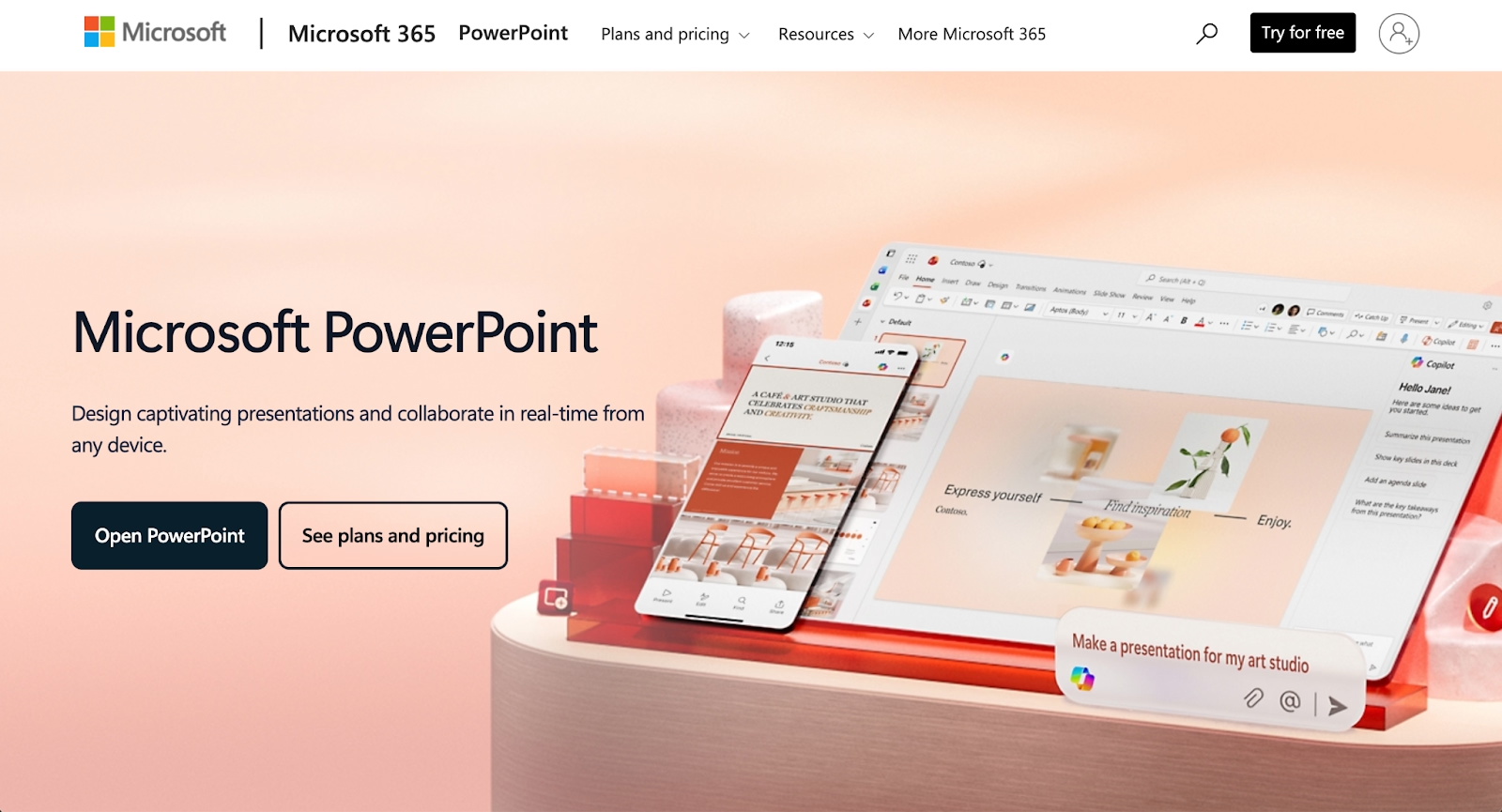
Microsoft PowerPoint is the industry-standard presentation software, part of the Microsoft Office suite. A longtime industry standard since the late 1980s, it has evolved into a comprehensive tool for creating professional presentations with advanced design features, animations, and multimedia support. PowerPoint works offline after installation and offers full functionality on both Mac and Windows platforms.
PowerPoint stands out for its extensive design tools, including transitions, advanced animations, 3D models, and PowerPoint Designer for AI-assisted layouts. It integrates tightly with Excel for data visualization, OneDrive for cloud storage, and Microsoft 365 for collaboration. PowerPoint files (pptx and ppt formats) remain the standard for business presentations, making compatibility a major advantage in corporate environments.
Key comparison criteria
The key differences between these platforms reflect their philosophies: Google Slides prioritizes accessibility, collaboration, and simplicity through its cloud-based approach, while Microsoft PowerPoint prioritizes depth, design control, and offline reliability through its desktop-first architecture. These philosophies shape every feature, from templates to AI tools to how teams work together on presentations.
Ease of use & learning curve
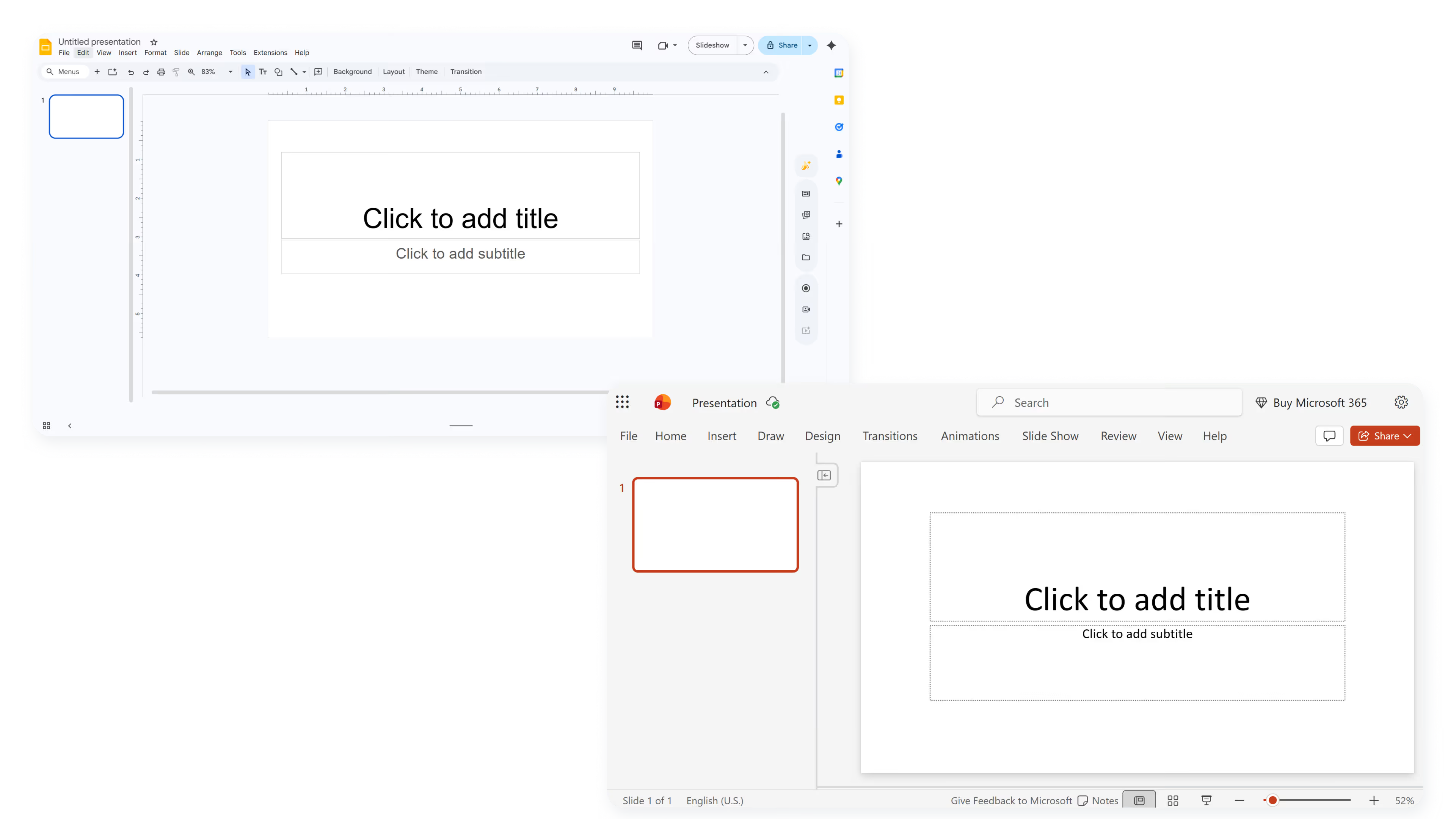
Google Slides offers a clean, intuitive interface that feels instantly familiar to anyone who has used Google Docs or other web-based tools. The minimal toolbar and straightforward menu structure mean beginners can start creating slideshows within minutes. Since it runs in a web browser with full functionality, there is no software installation required, and users can access their presentations from any device with an internet connection.
Microsoft PowerPoint has a steeper learning curve due to its extensive feature set. The ribbon interface provides access to advanced design tools, animations, and formatting options, but this depth can feel overwhelming for new users. For those willing to invest time in learning the platform, PowerPoint rewards with unmatched creative control over every aspect of the presentation. Microsoft provides extensive tutorials and documentation, but learning the full feature set takes time.
For teams that need to onboard new users quickly or include occasional presenters who lack design experience, Google Slides offers faster time-to-competency. For organizations where presentation quality is critical and users have time to develop skills, PowerPoint's advanced capabilities justify the learning investment.
Summary: Google Slides favors simplicity and quick adoption; PowerPoint favors depth and design mastery.
Templates & format control
Google Slides provides a modest library of built-in templates and layouts that cover common presentation needs. These templates are functional and clean, though less visually distinctive than premium alternatives. Users can access additional templates through third-party add-ons or import PowerPoint templates, though formatting issues sometimes occur during conversion.
Microsoft PowerPoint offers an extensive collection of professionally designed templates, themes, and layouts built for various business contexts. The PowerPoint Designer feature suggests design improvements automatically as you add content. Users have granular control over fonts, colors, spacing, and every visual element, making it possible to achieve highly polished, consistent results across slide decks. For guidance on choosing the right color scheme, dedicated resources can help teams establish brand-aligned palettes.
For organizations that prioritize brand consistency and professional-looking presentations, PowerPoint's templates and formatting precision deliver stronger results. For teams that need functional presentations quickly without extensive customization, Google Slides' simpler approach works well.
Summary: Google Slides delivers on simplicity and speed; PowerPoint prioritizes design precision and template variety.
AI features & automation
Both platforms have introduced AI capabilities, but they differ substantially in scope and application.
Google Slides leverages Google Workspace AI for basic assistance, including Smart Compose for writing suggestions and simple styling recommendations. The AI helps with grammar and phrasing but does not generate entire slides or automate complex design decisions. Integration with Google services means content from Google Docs or Gmail can inform suggestions, but the AI functionality remains relatively basic compared to dedicated presentation tools.
Microsoft PowerPoint has invested heavily in Copilot, an advanced AI assistant that can generate slide content from prompts, suggest professional layouts, interpret data from Excel, and adjust tone across an entire deck. Copilot is a major leap in AI-powered presentation creation, though it requires a Microsoft 365 subscription with Copilot access. For users who need AI to accelerate content creation and design decisions, PowerPoint's Copilot offers more substantial automation.
Summary: Google Slides uses AI for basic writing assistance; PowerPoint uses Copilot for comprehensive content generation and design automation.
Design tools, visuals & data visualization
Google Slides offers basic design features, including background images, shapes, charts, and embedded YouTube videos. Users can import images from Google Drive or the web and create basic data visualizations from linked Google Sheets. The platform handles multimedia adequately for straightforward presentations but lacks advanced controls for animations, transitions, or interactive elements.
Microsoft PowerPoint provides much deeper design and data visualization capabilities. Users can create sophisticated charts, embed Excel data that updates automatically, add 3D models, and build complex animations with precise timing controls. The Morph transition creates smooth, cinematic movement between slides. For presentations that rely heavily on data storytelling or visual impact, PowerPoint's design tools enable results that Google Slides cannot match.
Summary: Google Slides handles basic visuals and quick chart creation; PowerPoint shines with advanced data visualization, animations, and multimedia integration.
Interactive elements & audience engagement
Google Slides supports embedded YouTube videos and linked Google Forms for basic interactivity. Presenters can use Presenter View to see notes while the audience sees only slides. The platform works well for remote presentations through Google Meet integration, where presenters can share slides directly within the meeting interface.
Microsoft PowerPoint offers more comprehensive engagement tools, including Presenter View with timer and notes, live drawing during presentations, and advanced transitions that guide audience attention. The platform supports embedded video and audio files with precise playback controls. For large meetings or formal presentations, PowerPoint's live broadcasting feature allows real-time sharing to remote audiences through a web link.
Summary: Google Slides supports basic interactive content and remote presenting; PowerPoint delivers more advanced presentation tools and audience engagement features.
Collaboration features & real-time workflow
Collaboration is where Google Slides shows its strongest advantage. Multiple users can edit the same presentation simultaneously, with changes appearing in real-time. Commenting, suggesting, and chat features allow teams to discuss changes without leaving the platform. Version history tracks all edits and allows easy restoration of previous versions. Sharing is as simple as sending a link, with granular permission controls for viewing, commenting, or editing.
Microsoft PowerPoint has improved its collaboration capabilities through OneDrive and SharePoint, but real-time co-authoring remains less smooth than Google Slides. Users may experience delays seeing collaborators' edits, and the experience varies depending on whether participants use the desktop version, web app, or mobile app. For teams where multiple people frequently work on presentations together, Google Slides delivers smoother teamwork.
Summary: Google Slides emphasizes smooth real-time collaboration; PowerPoint focuses on individual creation with optional sharing.
Compatibility & integrations
Google Slides integrates naturally with Google services including Google Drive, Google Docs, Google Sheets, and Gmail. Users can embed live charts from Sheets, pull content from Docs, and share presentations directly through Gmail. The platform supports export to pptx format for PowerPoint compatibility, though complex formatting may not translate perfectly. Google Slides works in any modern web browser and has dedicated mobile apps for Android and iOS mobile devices.
Microsoft PowerPoint integrates deeply with the Microsoft Office suite, including Excel, Word, Outlook, and OneDrive. Live Excel charts can be embedded and updated automatically. SharePoint integration supports enterprise document management. PowerPoint files remain the standard format for business presentations and compatibility across organizations. The desktop version offers full functionality, while PowerPoint Online and mobile apps provide cross-platform access with some feature limitations.
Summary: Google Slides fits naturally into Google Workspace environments; PowerPoint fits into Microsoft 365 workflows and remains the standard for cross-organization compatibility.
Pricing & free plan
Google Slides is completely free for personal use with a Google account, which includes 15 GB of cloud storage on Google Drive. For businesses, Google Workspace plans start at $6/user/month and include enhanced storage, admin controls, and additional Google services. This pricing makes Google Slides highly accessible for students, educators, startups, and budget-conscious teams.
Microsoft PowerPoint requires either a Microsoft 365 subscription or a one-time purchase. Personal subscriptions start at $9.99/month, while family plans cost $12.99/month for up to six users. Business plans (Office 365) range from $6-$22/user/month depending on features. A one-time purchase of Microsoft Office remains available but lacks continued updates and cloud features. Copilot AI requires an additional subscription.
Summary: Both offer accessible entry points, but Google Slides is better for budget-conscious users while PowerPoint is better for users who need advanced features and offline access.
Ideal use cases
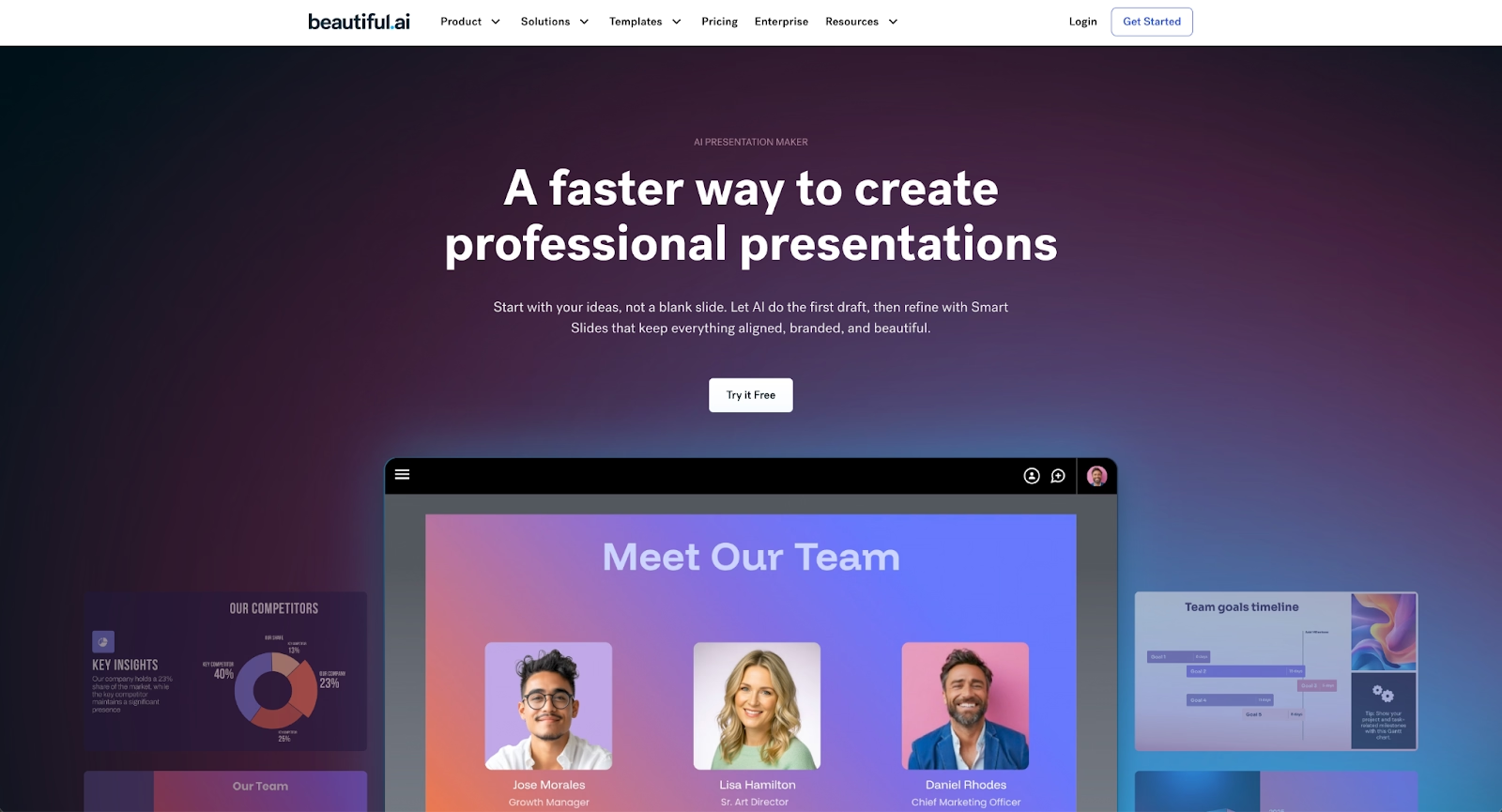
While Google Slides and PowerPoint serve distinct presentation styles and workflows, some teams need a middle ground. They want more design automation than traditional tools offer, without sacrificing usability or spending hours on formatting. Beautiful.ai fills this gap by combining AI-powered content generation with Smart Slide layouts that auto-align, resize, and animate content as you edit.
When Beautiful.ai is the better fit
- Teams that need on-brand, professional presentations without manual formatting work.
- Organizations producing recurring pitch decks, sales presentations, and quarterly reports at scale.
- Users who want AI to kickstart ideas from a prompt while maintaining design control.
- Teams that prefer a streamlined workflow rather than switching between design and content tools.
- Businesses that rely on consistent PowerPoint exports and brand governance across departments.
When Google Slides is the better fit
- Remote teams that need smooth real-time collaboration on presentations.
- Educators and students who benefit from free access and simple sharing.
- Budget-conscious organizations that prioritize cost over advanced features.
- Users deeply embedded in Google Workspace who want tight integration with Docs, Sheets, and Drive.
- Teams creating straightforward slide decks without complex animations or design requirements.
When Microsoft PowerPoint is the better fit
- Corporate professionals who need advanced animations, transitions, and 3D models.
- Presenters who frequently work offline or in environments with unreliable internet connection.
- Design-focused creators who require precise control over every visual element.
- Organizations standardized on Microsoft 365 where PowerPoint presentations are the expected format.
- Users who need Copilot's advanced AI for content generation and data interpretation.
Limitations and trade-offs
Every presentation tool reflects deliberate design decisions that prioritize certain capabilities over others. Knowing where each platform makes trade-offs helps set realistic expectations about what they do well and where compromises are unavoidable.
Beautiful.ai trade-offs
- Smart Slide layouts provide structure but offer less freeform design flexibility than full graphic design platforms.
- Does not include native audience interaction features like live polls or quizzes.
- Requires a subscription for full access; no permanent free plan for continued use.
- Best suited for structured business presentations rather than highly experimental visual formats.
Google Slides trade-offs
- Limited offline functionality requires internet access for full features and reliable performance.
- Fewer advanced design tools and animations compared to PowerPoint or dedicated presentation platforms.
- Importing PowerPoint files may result in formatting issues with complex layouts or fonts.
- Security depends on careful sharing settings; cloud storage introduces potential exposure concerns for sensitive content.
Microsoft PowerPoint trade-offs
- Requires paid subscription or purchase; recurring costs add up for individuals and small teams.
- Steeper learning curve for advanced features like Morph, custom animations, and Copilot.
- Real-time collaboration is less smooth than Google Slides, especially across different device types.
- Large file sizes from multimedia content can slow performance and create compatibility issues on older machines.
Future roadmap & evolving features
Product direction affects long-term fit. As AI and collaboration tools change quickly, the trajectory each platform follows shapes whether it will meet your needs in the years ahead.
Beautiful.ai focus
Beautiful.ai continues to advance AI-powered automation as its core differentiator. The roadmap centers on growing Smart Slide capabilities, which use built-in design logic (not AI) to auto-format content as users edit, improving data visualization, and strengthening collaboration features with permissions and brand governance for teams. The long-term vision positions Beautiful.ai as an always-on design assistant that handles formatting automatically so teams can focus on their message.
Google Slides focus
Google is growing AI capabilities across Google Workspace, with Slides benefiting from improvements to Gemini-powered features. Future development emphasizes deeper integration with other Google services, enhanced collaboration tools, and incremental AI assistance for content and design suggestions. Google's trajectory prioritizes accessibility and teamwork over advanced design depth.
Microsoft PowerPoint focus
Microsoft is investing heavily in Copilot AI across the Microsoft Office suite, with PowerPoint receiving continued enhancements to content generation, design automation, and data interpretation. Future updates will likely deepen integration with Teams for hybrid meeting presentations and expand Copilot's ability to work contextually across Word, Excel, and Outlook. Microsoft's direction emphasizes AI-powered productivity for enterprise users.
Final recommendation
Google Slides and Microsoft PowerPoint each excel in specific scenarios: Google Slides is the stronger choice for real-time collaboration, cloud accessibility, and cost-effectiveness, while PowerPoint wins when advanced design control, offline reliability, and comprehensive AI features through Copilot matter most.
For teams that sit between those extremes, wanting more automation than traditional tools provide but less complexity than full design software, Beautiful.ai offers a practical long-term choice. It removes the manual formatting overhead found in both Google Slides and PowerPoint while delivering consistently professional results through Smart Slides that handle layout, spacing, and design rules automatically. AI features help kickstart presentations from a prompt, and the platform exports cleanly to PowerPoint format when stakeholders require it.
If your goal is to streamline presentation creation, maintain brand consistency across teams, and spend less time on design decisions, Beautiful.ai is worth exploring. Start with a free 14-day trial to see how it fits your workflow.
Why customers are switching to Beautiful.ai
Beautiful.ai is an AI-powered presentation platform that helps teams create polished, on-brand slides in a fraction of the time, without design skills or manual formatting.
- Design automation built in. Whether you're building pitch decks, reports, or internal presentations, Beautiful.ai’s Smart Slides automatically format content so you never worry about spacing, alignment, or layout again. Add your content, and the design adjusts instantly.
- ️No design experience required. Create professional decks without touching text boxes or manually arranging elements. Choose from Smart Templates and let the AI handle layout decisions, visual hierarchy, and consistency across the entire deck.
- Branding? Already handled. Keep every slide on-brand with your fonts, colors, and logos applied automatically. Beautiful.ai ensures every team member creates presentations that look like they came from a dedicated design team—without extra work.
- Real-time collaboration & team controls. Collaborate directly on the same deck, leave comments, manage permissions, and maintain consistency across team presentations. Perfect for growing teams and cross-functional workflows.
- Faster workflows, fewer revisions. Jump from rough outline to polished presentation in minutes, not hours. Beautiful.ai reduces back-and-forth edits by enforcing on-brand design rules and helping you iterate faster with AI-assisted slide creation.
